


How to Save Netflix Downloads on microSD Card [2 Ways]

Claire Green January 19, 2026 Category: Netflix Tips
Generally, a two-hour-long Netflix movie is around 3–4 GB, and an entire Netflix season is usually about 15–30 GB. This means the storage space on your Android will soon be used up after you download several Netflix movies or seasons.
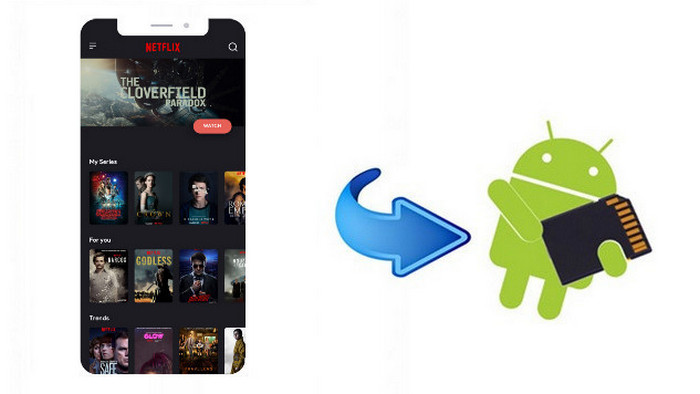
That's why you need to download Netflix to an SD card, which can have up to 1TB of storage. This way, you can save several Netflix movies at the same time without worrying about your Android becoming slow or freezing. In this guide, we will teach you how to download Netflix movies to an SD card, and even on Windows, Mac, and other devices.
 You May Also Like: How to Watch Netflix on Nintendo Switch?
Reading Guide
1. Before Downloading Netflix: What You Need to Know
Why download to an SD card?
Downloading Netflix to an SD card has many benefits:
- ✅ Save your device's storage space - no freezing anymore.
- ✅ Watch Netflix offline even if you are on the subway/train/plane.
- ✅ Save dozens of Netflix movies or TV seasons at once.
⚠️Netflix app downloads expire after your subscription ends. To keep Netflix videos permanently, try SameMovie.
Which devices support SD cards?
Not all devices allow you to save Netflix content to an SD card. According to the Netflix help center, only Android devices and Amazon Fire devices support downloading Netflix content to an SD card.
- Android devices: All Android devices equipped with SD card slots, such as Samsung, Google Pixel, Xiaomi, Huawei, OnePlus, and other major brands.
- Amazon Fire devices: All Fire tablets that support microSD card insertion, such as the Fire HD 8, Fire HD 10, and others.
2. Download Netflix Content to SD Card on Android
Running out of storage on your Android phone? Follow these easy steps to download Netflix videos to a microSD card.
Step 1: Launch the Netflix app on your Android phone.
Step 2: Tap on the "Menu" icon in the upper-left side of the screen.
Step 3: Scroll downl to "App Settings" and locate the "Download Location" option in the Downloads section.
Step 4: Select Download Location" and tap on "SD Card".
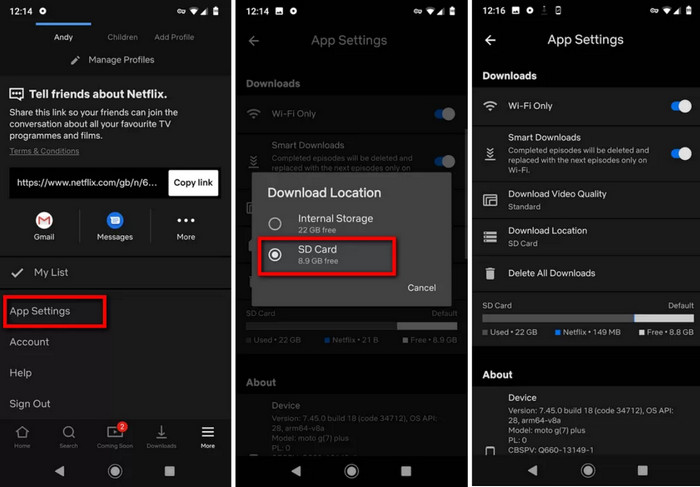
Now you have successfully download Netflis directly to your SD card. However, this approach comes with an obvious limit: you can't play Netflix downloads from an SD card on another phone — they only work on the device where they were downloaded.
If you want to downlaod Netflix and transfer it to other devices, keep reading!

How to Watch Netflix on Xbox?
Wondering if you can watch Netflix on Xbox, and what the requirements are? How to watch? Are you experiencing Netflix not working on Xbox while watching? Please continue reading for more information about watching Netflix on Xbox.
Learn More3. Download Netflix Content to SD Card on iPhone/iPad
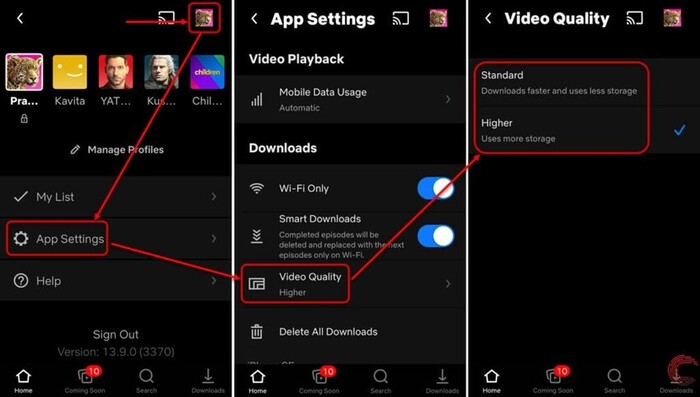
For iPhone or iPad users, you can't download Netflix content directly to an SD card because iPhones and iPads don’t have SD card slots. To save storage space, you can consider choosing "Standard" quality. Here are the steps:
- Manage your Netflix downloads regularly: delete them after watching.
- Select lower video quality for downloads: Go to App Settings → Downloads → Video Quality and choose "Standard".
- Purchase a device with greater storage capacity, such as at least 256GB for the iPhone.
For laptop users, Netflix doesn't offer an official app for Windows or Mac, but there is a workaround.
4. Download Netflix Movies to SD Card with SameMovie
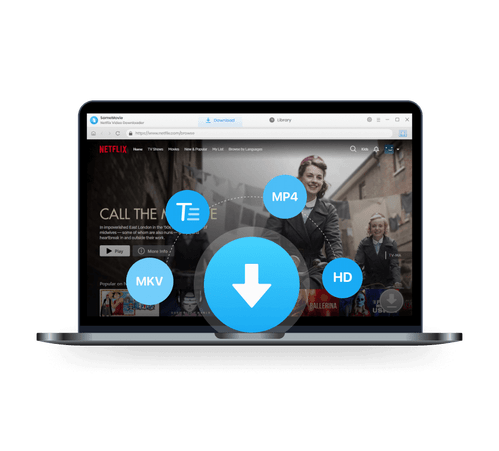
SameMovie Netflix Video Downloader is a powerful tool that lets you download Netflix movies on laptop in Full HD. After downloading Netflix videos as MP4 or MKV files, you can transfer them to an SD card or other devices such as Xbox, PS4, Nintendo Switch, USB drive, and more, and keep them permanently.
Additionally, SameMovie supports batch download, so you can download several Netflix movies or an entire Netflix season at once. You can also keep the original Netflix Dolby Atmos and multi-language subtitles in three modes, so you have full control over your downloads!
SameMovie Netflix Video Downloader:
- Download Netflix movies, TV shows, documentaries, and more
- Download Netflix videos with HD (1080p and 720p) quality kept
- Support downloading subtitles and audio tracks
- Support fast multi-stream and multi-video downloading
STEP 1 Download and Install Netflix Video Downloader
Download Netflix Video Downloader on your device and install it.
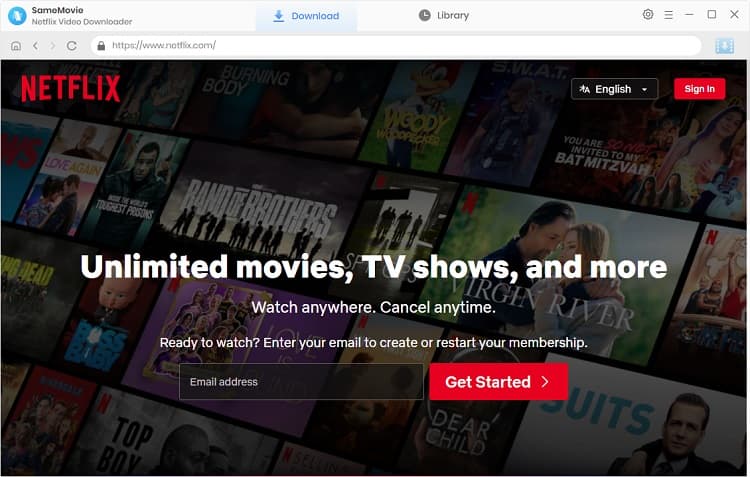
After the installation is complete, you can launch Netflix Video Downloader and sign in to your Netflix account.
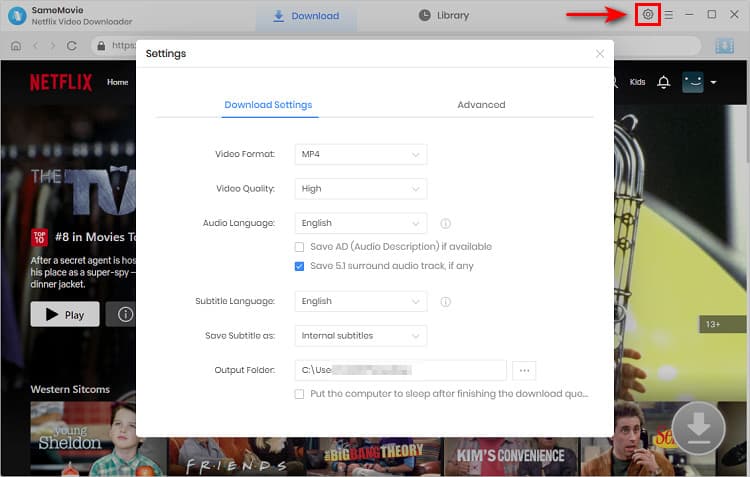
STEP 2 Customize the Download settings
Click on the "Setting" icon on the upper right corner of the interface. In the prompt, you can customize the download format to MP4 or MKV, quality to High, Medium, or Low, and change the output folder.
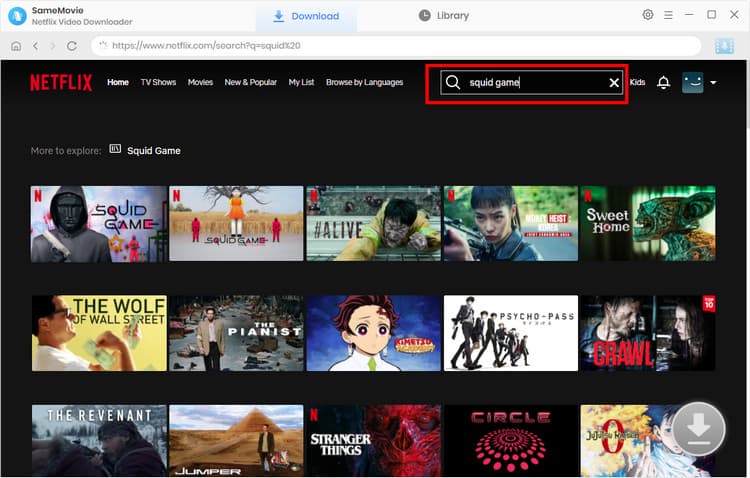
STEP 3 Search the Netflix Movies or TV Shows
Simply type the name of the movie or TV show in the search bar, or browse the Netflix library in the built-in browser to find the video you want to download
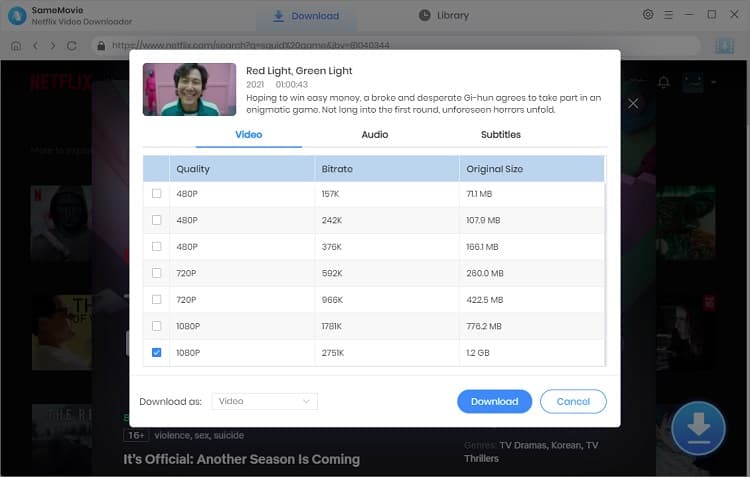
STEP 4 Choose Advanced Download Settings
Click the "Download" icon  in the lower right corner after you have selected the video you want to download. For Netflix movies, after clicking the "Download" icon, an advanced download window will pop up directly for you to customize the video quality, audio tracks, and subtitles.
For Netflix TV shows, click the "Download" icon to choose the season and episode you want to download first. Then, click on the "Advanced Download" button to open the advanced download window.
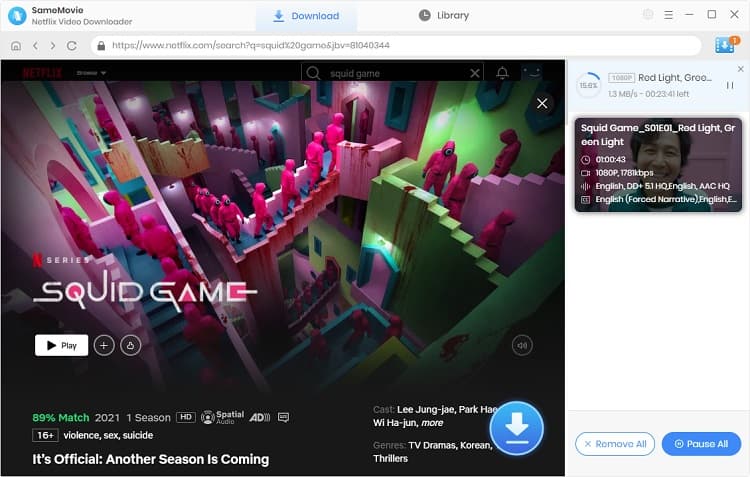
STEP 5 Start Downloading Netflix Videos to PC
Click on the "Download" button, and the program will start downloading Netflix movies.
STEP 6 Find Your Downloads
Finally, go to the "Library" tab to find all your Netflix downloads.
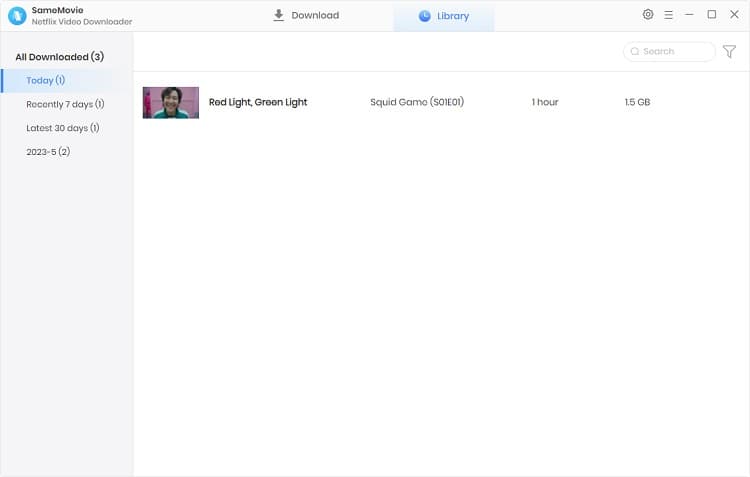
If you want to transfer them to an SD card or other devices, insert the microSD card into your computer using a built-in or external card reader. Then, simply transfer the Netflix videos to the SD card.
5. FAQs about Downloading Netflix to SD Card
Can I transfer Netflix downloads from SD card to laptop or USB drive?
If you download Netflix through its official app, then you can't transfer it to other devices. If you want to download Netflix and watch them on other devices, like laptops, Xbox, PS4, USB drive, or more, you need use a third-party tool like SameMovie Netflix Video Downloader.
How much SD card storage do I need for Netflix downloads?
Generally, a two-hour-long Netflix movie is about 3–4 GB, and an entire Netflix season is about 15–30 GB. An SD card with 1TB capacity can let you save dozens of movies or multi-season TV series.
Is there a limit to how many titles I can download to SD card?
Yes! Netflix only allows subscribers download up to 100 titles per device. However, you can use SameMovie Netflix Video Downloader to download any titles without limits.
Conclusion
In this guide, we provide two effective methods for you to download Netflix downloads onto a microSD card. These methods can help individuals free up storage space on their devices and enjoy their favorite Netflix content offline.
If you want a tool that lets you download Netflix without limits and save content permanently, SameMovie is a great option.
What If I Lost My Preserved Netflix Videos on SD Card?
Although your SD Card is unfortunately damaged, you can simply use Syncios D-Savior, a tool for recovering from various devices: USB, CF/SD card, SSD, camcorder, digital camera, MP3 player, video player, to restore all your data, including your preserved Netflix videos.
Learn More
Claire Green, a content writer specializing in blogs. With a passion for streaming video, Claire explores the latest trends, reviews popular platforms, and provides insightful tips for optimizing your streaming experience.
What You'll Need
Recommend