


How to Screen Record Netflix in High Quality on Mac

Claire Green June 26, 2026 Category: Netflix Tips
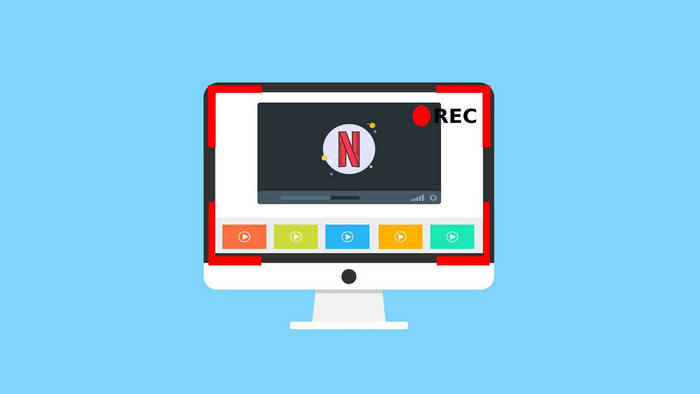
Because there is no option for downloading Netflix TV shows and movies to MacBook, most of us will turn to use the screen record software. Unfortunately, when you find the screen recording software and are ready to record your favorite video from Netflix, You might encounter issues like a black screen or video is out of sync in your recordings.
In this article, we will introduce 2 safe and reliable recorders to let you record Netflix on Mac without black screens. Meanwhile, we'll also present a powerful tool that allows you to download Netflix directly on your Mac, bypassing all recording issues. Keep reading!
You may be interested in: Best 5 Ways to Record Netflix on PC in High Quality [2026]
Reading Guide
- Why Can't I Screen Record Netflix on Mac?
- 4 Effective Ways to Screen Record Netflix in High Quality on Mac
- Method 1: Record Netflix on Mac with 8x Speed Recording Using SameMovie
- Method 2: Batch Download Netflix Videos at 10X Faster Speed
- Method 3: Screen Record Netflix on Mac Using DemoAir Recorder
- Method 4: Fix Netflix Black Screen by Disabling Hardware Acceleration in Browser
- Common Netflix Black Screen Problems and How to Fix Them
- FAQs About Recording Netflix on Macbook
Why Can't I Screen Record Netflix on Mac?
Can you record Netflix on Mac? Many users want to record Netflix on Mac for offline viewing since Netflix doesn't offer an official app for downloads on macOS. However, when attempting to record, they often run into an issue: most screen recorders can only capture a black screen instead of the actual video.
Why Does This Happen?
This is because Netflix uses a specific display method to protect its content from being recorded or redistributed without perimission. And, we called this protect method - Digital Rights Management (DRM) technology.
How Does DRM Work?
The video you're watching on Netflix isn't actually just the original video material. Instead, Netflix encrypts the video first. When you click Play, Netflix has just temporarily decrypted the video. It's like Netflix put everything in a locked transparent box to be played. Without the key, you can't access the things in the box.
That's why most recorders don't work on Netflix, and only screen recordings show black screens with sound.
Why Screen Recording Netflix on Mac Is Harder in 2026
On macOS devices, several additional protection layers make screen recording even less reliable:
- Apple Silicon chips (M1–M4) use more secure hardware-level video decoding
- macOS screen recording permissions are more restricted in recent versions (Sequoia / Tahoe)
- Safari applies stricter DRM enforcement compared to other browsers like Chrome or Edge
- External displays or AirPlay connections may trigger HDCP protection, resulting in black screens
You may be interested in: [2026] How to Download Netflix Movies on Mac for Offline Viewing
4 Effective Ways to Screen Record Netflix in High Quality on Mac
Method 1: Record Netflix on Mac with 8x Speed Recording Using SameMovie
SameMovie Video One is designed to download from over 1,000 streaming sites such as Netflix, Amazon, Disney+, HBOMax, YouTube, and more. As a recorder, it also has a powerful and reliable performance. It allows you to record Netflix, live TV, live shows, or live sports in up to Full HD (1080p). What'smore, it supports up to 8X recording speed and lets you skip ads or unwanted parts directly in the built-in browser.
You don't have to wait for the recording to finish. You can set the countdown and end time before recording. Once it starts, the video will continue recording in the background, so you can close the window and do other things!
How to record Netflix with SameMovie Video One?
STEP 1 Download and install SameMovie Video One and switch to the "Record" tab.
STEP 2 Copy and paste the Netflix movie's link in the search bar, then press "Enter" on your keyboard.
STEP 3 Click the record button next to the search bar and set up your desired output quality, countdown, and auto-stop time.
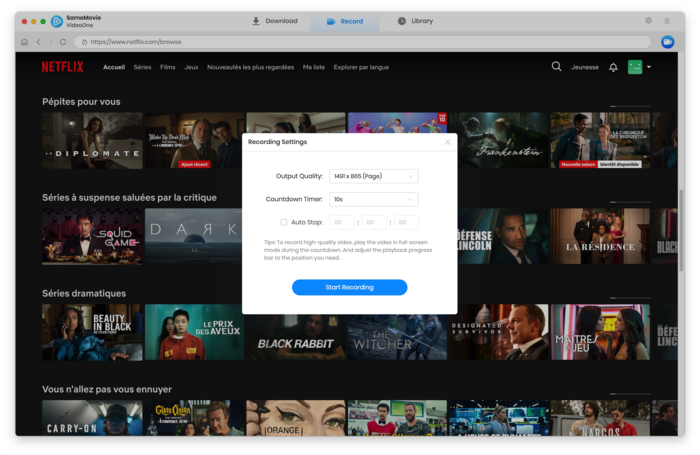
STEP 4 Click "Start Recording" and it will start after the countdown. Now, you can close the program, it will record the Netflix automatically in the background!
What's the Pros and Cons of SameMovie Video One
| ✅ Pros |
|
|---|---|
| ❌Cons |
|
Method 2: Batch Download Netflix Videos at 10X Faster Speed
Recording requires you to wait a long time for the video to finish. Luckily, there's a quick way to save Netflix videos directly to your device. SameMovie Netflix Video Downloader, which supports batch download and hardware acceleration, allows you to download multiple Netflix movies or an entire season at a time very quickly. All downloads are saved as MP4/MKV files, in up to 1080P, so you can transfer them to any device and watch offline.
SameMovie allows you to fully save the original Netflix Dolby Atmos or Dolby Digital 5.1 Surround Sound, giving you both a wonderful visual and audio experience. Besides, you can preserve multi-lingual subtitles in three modes: internal, external, and hardcoded, allowing you to fully control your viewing experience.
 You May Also Like: SameMovie Netflix Video Downloader Review [2026 Latest]
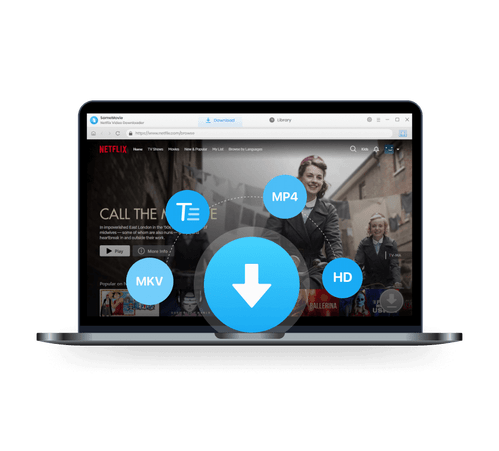
SameMovie Netflix Video Downloader:
- Download Netflix movies, TV shows on Mac and PC
- Download Netflix with Full HD quality kept to Watch Offline
- Support downloading subtitles and audio tracks
- Support fast multi-stream and multi-video downloading
Tutorial: How to Download Netflix with SameMovie
STEP 1 Download and Install SameMovie
Install and launch SameMovie on your Mac, then log in to your Netflix account.
STEP 2 Customize Output Settings
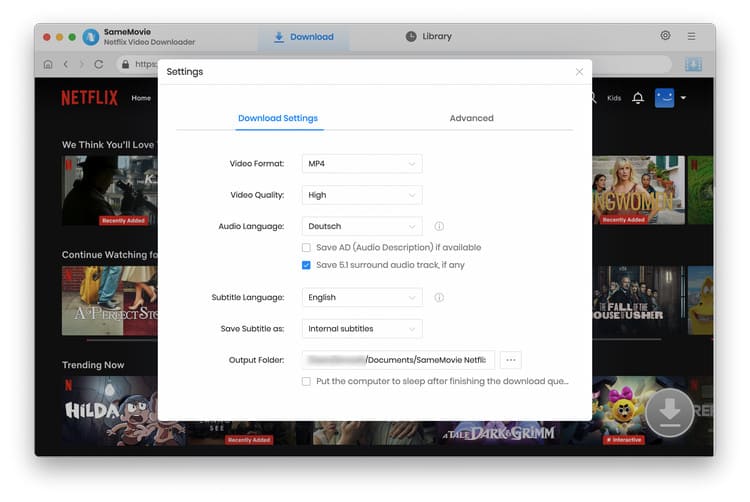
Click the "Setting" button in SameMovie's upper right corner to change the Account Setting and Download Setting.. You can change the Audio Type to Original or AD audio track, change the Video Quality to High, Medium, or Low, and choose your favorite audio tracks and subtitles under Download Settings.
Furthermore, you can use the graphics card's GPU to improve SameMovie's download capabilities by turning on hardware acceleration by choosing "Enable hardware acceleration when available".
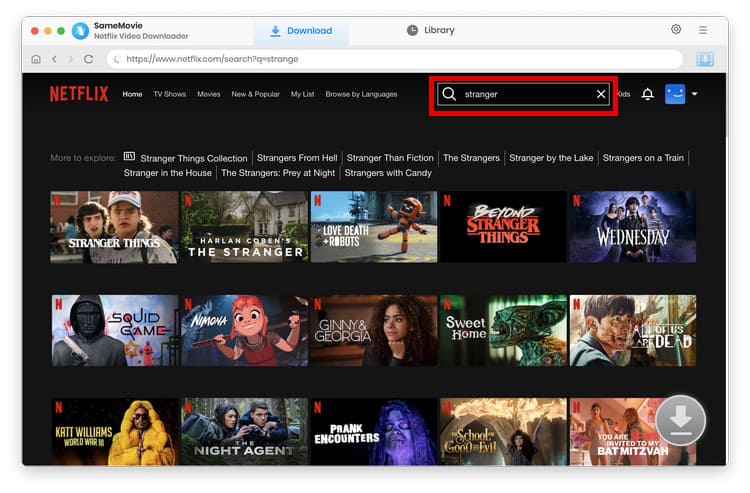
STEP 3 Search Videos in the Built-in Browser
SameMovie supports adding Netflix videos by typing its name or keywords in the search box, and then SameMovie will load the videos according to the words you input.
STEP 4 Select Advanced Download Settings
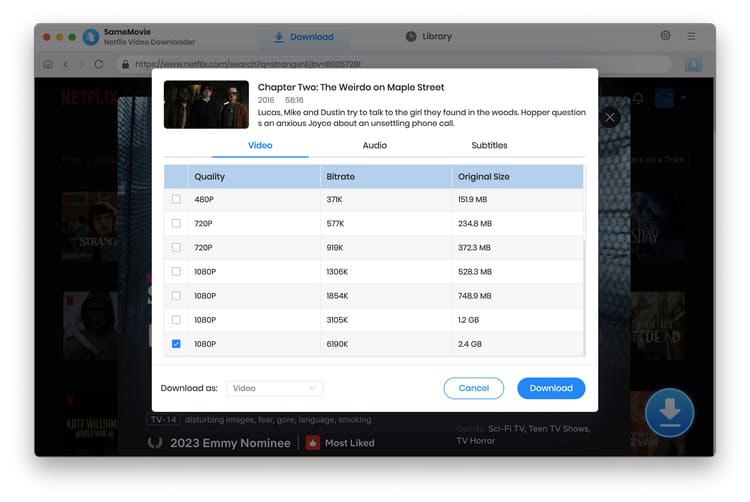
SameMovie supports selecting the specific download quality, audio tracks, and subtitles for the particular video. You can do that by clicking on your desired video and then tap on the activated "Download" icon in the lower right corner.
STEP 5 Check Downloads in Library
After all settings are done, you can hit the "Download" button to start downloading Netflix movies on Macbook.
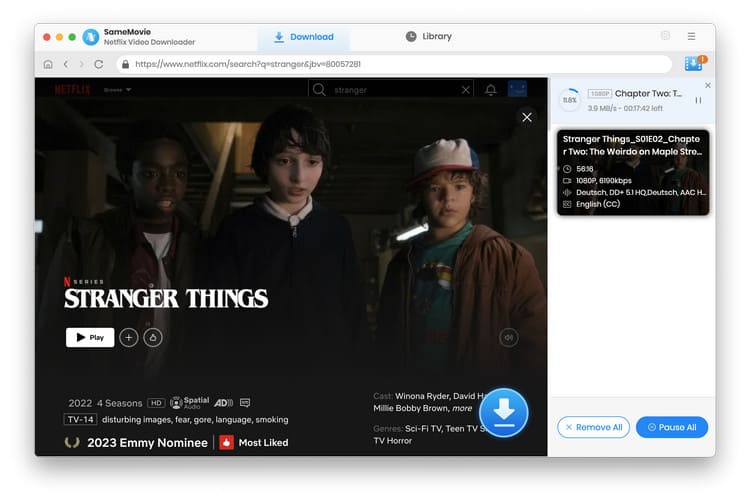
You can view the successfully downloaded Netflix movies on the "Library" tab once the download is complete.
With SameMovie Netflix Video Downloader, you can easily download movies and TV shows from Netflix to MP4 format on Mac with the high definition quality and multiple audio tracks & subtitles kept. This is the best Netflix video recorder ever that is worth your trial.
Method 3: Screen Record Netflix on Mac Using DemoAir Recorder
DemoAir Recorder is an online recorder that lets you record Netflix movies and shows without installing any additional apps. Just open Netflix and DemoAir Recorder in your browser and start recording. The best part is that they offer a browser extension, so you can record Netflix anytime you want. The only downside is that it's not free: you can record up to 10 minutes per video for free, after which payment is required starting at $29.99 per quarter.

How to screen record Netflix on Mac using DemoAir Recorder
STEP 1 Open DemoAir Recorder in your browser, and select the recording mode you want.
STEP 2 Open Netflix in your browser and find the video you want to record.
STEP 3 Once ready, go back to the DemoAir Recorder page and click "Start Recording".
STEP 4 In the new pop-up window, select the Netflix page you just opened, then click "Share".
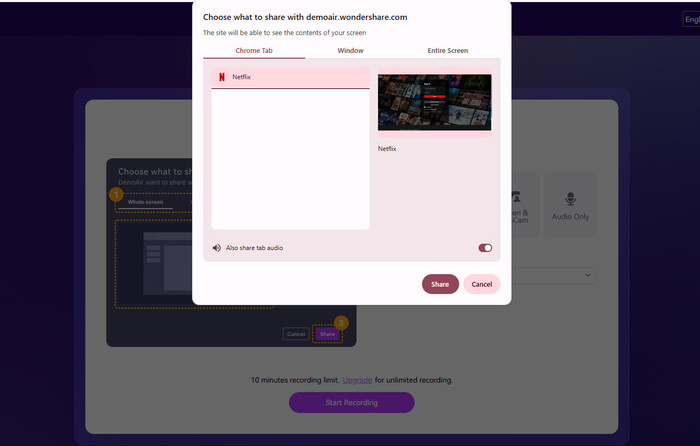
STEP 5 Start playing the video to begin recording. When it is finished, click the record button in the top-left corner again.
What's the Pros and Cons of DemoAir Recorder
| ✅ Pros |
|
|---|---|
| ❌Cons |
|
Method 4: Fix Netflix Black Screen by Disabling Hardware Acceleration in Browser
In addition to using third-party tools, you can also prevent the screen from going black when recording Netflix by disabling hardware acceleration in your browser. Here, we use Google Chrome as an example.
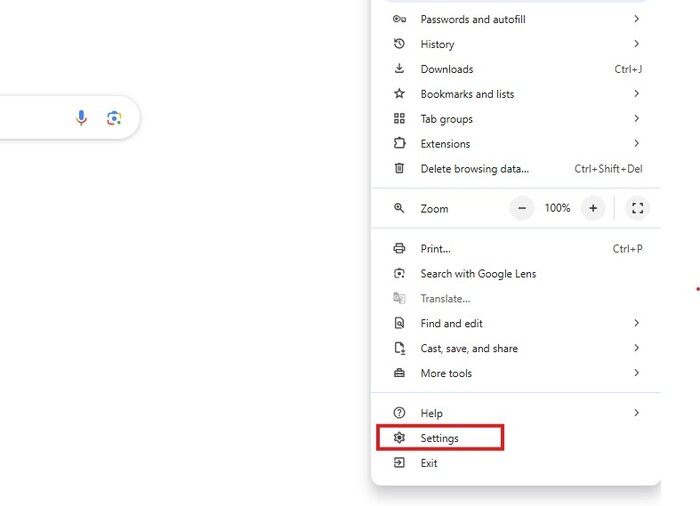
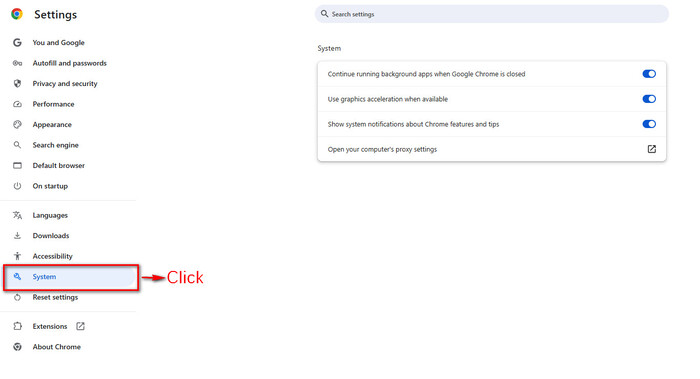
- Open Chrome and click the three dots ⋮ in the top-right corner, and select Settings.
- In the left sidebar, click System.
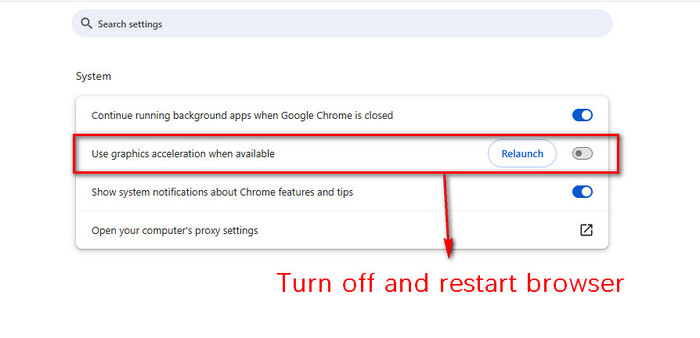
- Toggle off the option "Use graphics acceleration when available".
- Reluance the Google Chrome, and start recording Netflix.
Why Disabling Hardware Acceleration Fixes Netflix Black Screen
When you enable hardware acceleration, Netflix videos will be sent directly to the GPU's protected buffer, and normal screen recorders cannot access this protected layer.
After you turn off hardware acceleration, the browser is forced to switch to CPU rendering. At this point, video frames no longer follow the GPU’s secure rendering path, allowing screen recording tools to capture the footage normally.
You may be interested in: How to Share Screen on FaceTime to Watch Netflix (100% Work)
Common Netflix Black Screen Problems and How to Fix Them
Many users experience black screen issues when trying to record Netflix videos on Mac or Windows. In most cases, this is not caused by the recording tool itself, but by different system or browser-level restrictions.
Below are the most common problems and how to fix them.
1. Black screen but audio is working
This usually happens because video rendering is blocked while audio is still accessible.
Fix:
- Turn off hardware acceleration in your browser.
- Try windowed mode instead of full screen.
- Switch to a different browser (Chrome / Edge).
2. Completely black screen (no video or audio)
This often indicates stronger DRM protection is active.
Fix:
- Make sure Netflix is not running in app mode.
- Disable hardware acceleration.
- Restart browser and try again.
3. Video appears frozen or partially recorded
This is usually caused by GPU rendering conflicts or system overload.
Fix:
- Close background applications.
- Reduce recording resolution.
- Switch screen recording software.
FAQs About Recording Netflix on Macbook
Q1: Is it safe and illegal to screen record Netflix content with SameMovie?
SameMovie Netflix Video Downloader is widely used by countless users worldwide, without any bundled software, so you can consider it is safe to use. When recoring Netflix movies with SameMovie, please remember use these files only for offline personal use. Otherwise, if you redistribute or selling the recorded content, you may violate your cities' policies.
Q2: How to get 4K Netflix on Mac?
To get 4K Netflix on Mac, you need to subscribe to the Netflix Premium plan. It is the only plan that supports Ultra HD and 4K quality. Plus, your device should be at least Apple silicon (M1 | M2 | M3 | M4), running macOS 11 Big Sur or later. Then, you can use SameMovie Video One to record Netflix movies on Mac in high quality. After that, use an AI video enhancer to improve your video to 4K.
Q3: How to screen record Netflix without black screen on Android
It's very hard to find a tool that you can use to record Netflix on Android without black screens. If you want to enjoy Netflix offline viewing, just use the download feature in the official app. Or, you use SameMovie to download or record Netflix, then transfer them to your mobiles.
Q4: What is the best tool to save Netflix Video in 2026?
To help you make a decision, the comparison table below clearly shows the benefits and drawbacks of each tool:
| Features | SameMovie Video One | DemoAir Recorder | SameMovie Netflix Video Downloader |
|---|---|---|---|
| Compatibility | Windows & Mac | Web (Browser-based) | Windows & Mac |
| Record Netflix | ✅ | ✅ | ❌ |
| Download Netflix | ✅ Download from 1000+ streaming sites |
❌ | ✅ |
| No Need to Wait for Playback | ✅ | ❌ | ✅ |
| Batch Download | ✅ | ❌ | ✅ |
| Background Operation | ✅ | ❌ | ✅ |
| Save Audio & Subtitles | ✅ | ❌ | ✅ |
| Pricing | $149.9/Lifetime (Recording Free) |
$79.9/Lifetime | $79.9/Lifetime |
Conclusion
Most recording tools have limitations, such as requiring the playback to end and outputting black screen video. The article suggests an alternative solution called SameMovie Netflix Video Downloader, which addresses these limitations and offers a more efficient way to download Netflix movies on Mac. With SameMovie, you can easily download and watch Netflix movies offline on your Macbook or iMac. You can download the tool for a try. If you are looking for more tips about Netflix, please go to our Netflix Tips Center.
Claire Green, a content writer specializing in blogs. With a passion for streaming video, Claire explores the latest trends, reviews popular platforms, and provides insightful tips for optimizing your streaming experience.
Tips You May Want to Know
What You'll Need
Recommend